
The Audi MMI (Multi Media Interface) 3G and 3G+ are the infotainment systems fitted to Audi vehicles produced roughly between 2010 and 2018. Found in the A4 B8, A5, A6 C7, A7, A8 D4, Q5, and Q7, these systems represent Audi’s most sophisticated pre-virtual-cockpit infotainment platform. Understanding how they work — and what to do when they lock after a battery change — is essential knowledge for any owner.
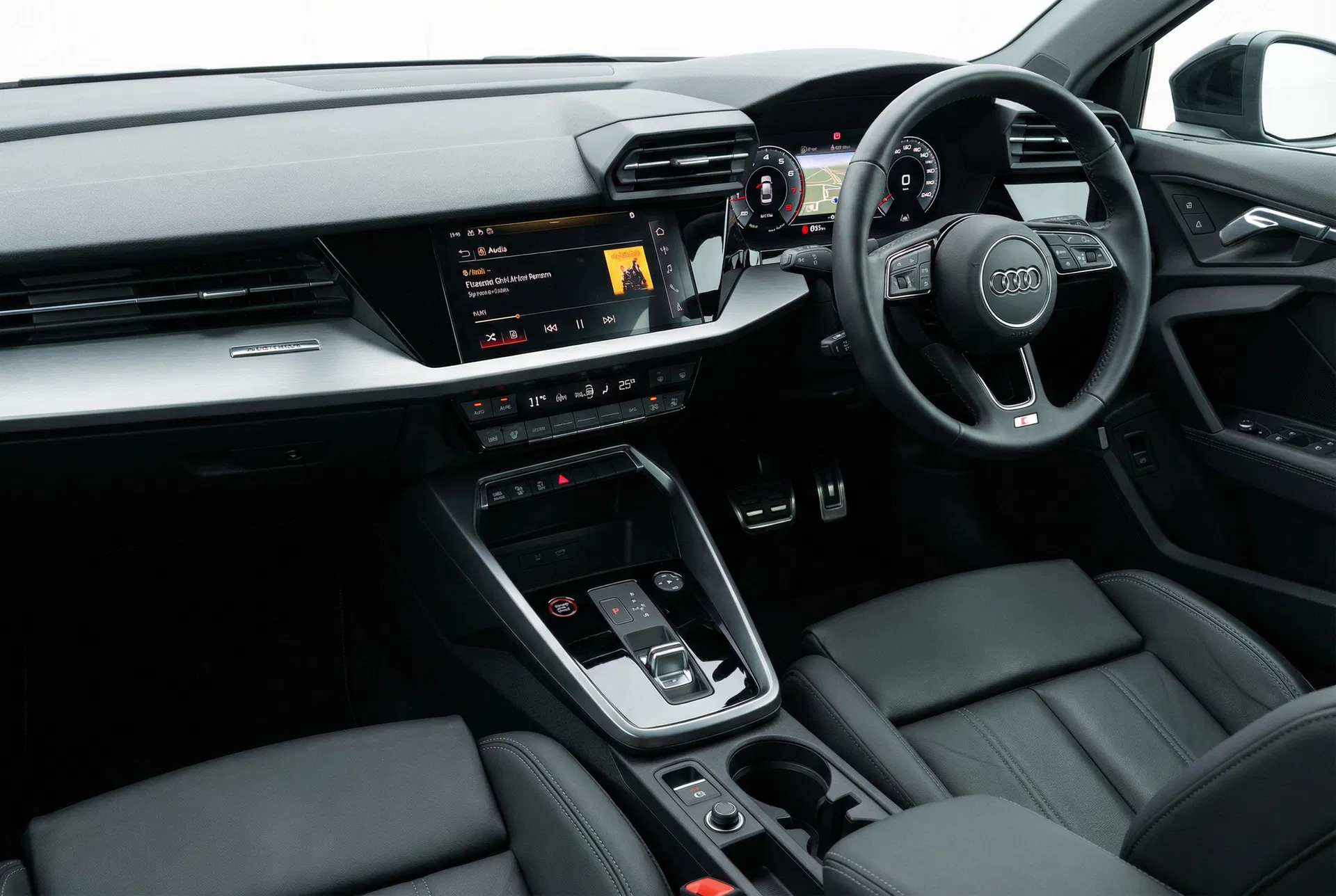
The Audi MMI system in an A3 — a clean, driver-focused interface that prioritises physical controls over touchscreen interaction.
MMI 3G vs MMI 3G+ — Key Differences
The MMI 3G was introduced in 2010 as a significant upgrade over the earlier MMI 2G system. It brought a faster processor, a larger 7-inch display, and improved navigation software. The MMI 3G+ followed in 2012 with additional features including a hard disk drive for music storage, improved Bluetooth, and the ability to connect to Audi’s online services via a built-in SIM card.
The most visible difference between the two versions is the presence of a handwriting recognition pad on the MMI 3G+. This pad, located in the centre console between the gear lever and the MMI controller, allows the driver to write letters and numbers with a finger to input navigation destinations or search terms.
The MMI Controller — Audi’s Alternative to Touchscreens
One of the defining characteristics of the MMI system is its use of a rotary controller rather than a touchscreen as the primary input method. This controller, located in the centre console, can be rotated, pressed, and tilted in eight directions. Four shortcut buttons surround it, providing direct access to the main menu categories: Navigation, Phone, Media, and Car.
Audi’s rationale for this approach was driver safety — a physical controller can be operated without looking away from the road, whereas a touchscreen requires visual confirmation of each input. Many owners and automotive journalists have praised this philosophy, and it remains a point of differentiation for Audi even as the brand has moved toward touchscreens in more recent models.
Navigation System and Map Updates
The MMI 3G and 3G+ use DVD-based map storage. The navigation DVD is inserted into a slot in the MMI unit itself, which is typically located in the boot of the vehicle (in the A6 and A8) or behind the glovebox (in the A4 and A5). Map updates are released annually and can be purchased from Audi dealers or authorised online suppliers.
The MMI 3G+ added the option of online map updates via Audi Connect, though this service required an active subscription and is no longer supported by Audi in most markets.
Radio Code and Security After a Battery Change
Unlike older Audi radios that use a simple four-digit code, the MMI 3G and 3G+ use a more sophisticated security system. When the unit loses power, it may display a prompt for a security code on the MMI screen. This code is a four-digit number tied to the unit’s serial number.
The serial number can be found in the MMI’s settings menu under System → Version Information → Serial Number. This avoids the need to remove the unit from the vehicle. The serial number begins with AUZ and can be used to retrieve the corresponding code through an Audi dealer or an online code retrieval service.
Entering the Code on an MMI 3G System
- Turn the ignition to position II.
- The MMI screen will display a code entry prompt.
- Use the MMI rotary controller to navigate to the digit entry fields.
- Rotate the controller to select each digit, then press to confirm.
- After entering all four digits, navigate to the OK option and press the controller to confirm.
- If the code is correct, the MMI will resume normal operation.
Common MMI 3G Faults
The MMI 3G and 3G+ are generally reliable, but several issues are commonly reported:
- MMI freezing or rebooting — Usually caused by a software fault. A system reset (hold the MENU button and the left rotary knob simultaneously for 10 seconds) often resolves this.
- Navigation DVD not reading — The DVD drive mechanism can wear out. Replacement drives are available from specialist suppliers.
- Bluetooth audio cutting out — Often caused by interference from other devices. Try deleting and re-pairing the phone.
- Screen dimming or flickering — May indicate a failing backlight or a loose display connection.